
Operating Systems
Computers only work because of the software running on them and the first bit of software that the computer will talk to will be...not the OS. The CPU needs a way to get "booted up". This would start with what was the BIOS, which has been replaced by UEFI. This handles getting the CPU started (bootstrapped) and most peripherals up and running.
But after that, we have the OS.
- It is the translator between the user and the hardware
- It acts as a manager for the hardware
- Memory
- Disk
- CPU
- Peripherals!
OS and the user
A key function of the OS is that it talks to the user (it's a people person!). The OS will take input by the user, send it to the CPU or other peripherals as needed, and then display any results. Of course today, Graphical User Interfaces (GUI) are the norm. But, command line used to be the norm, and as we discussed before, for HPC's still is.

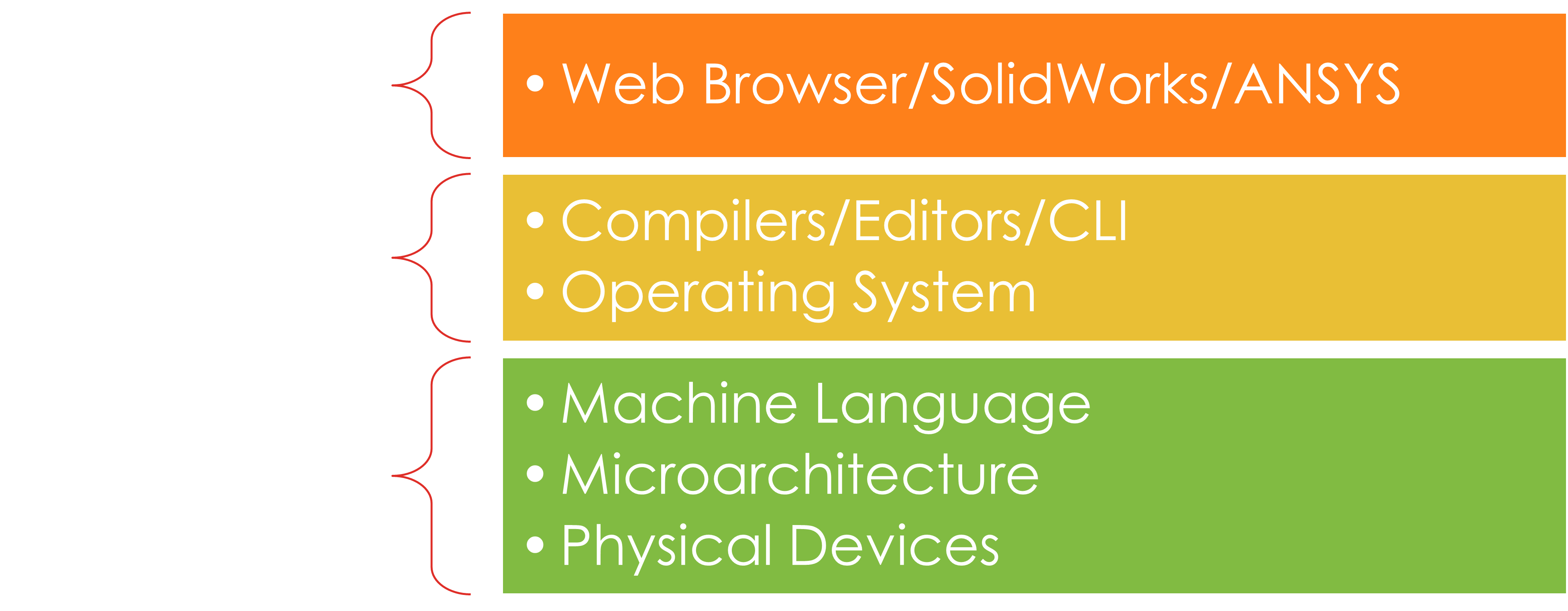
An OS has many tasks and a few levels that it works with.
Linux on the desktop?
Linux is not seen on the desktop very often (but it is out there). But, if you count MacOS, which is based on BSD (which is based on Unix) then in a way yes, it is on the desktop as well.
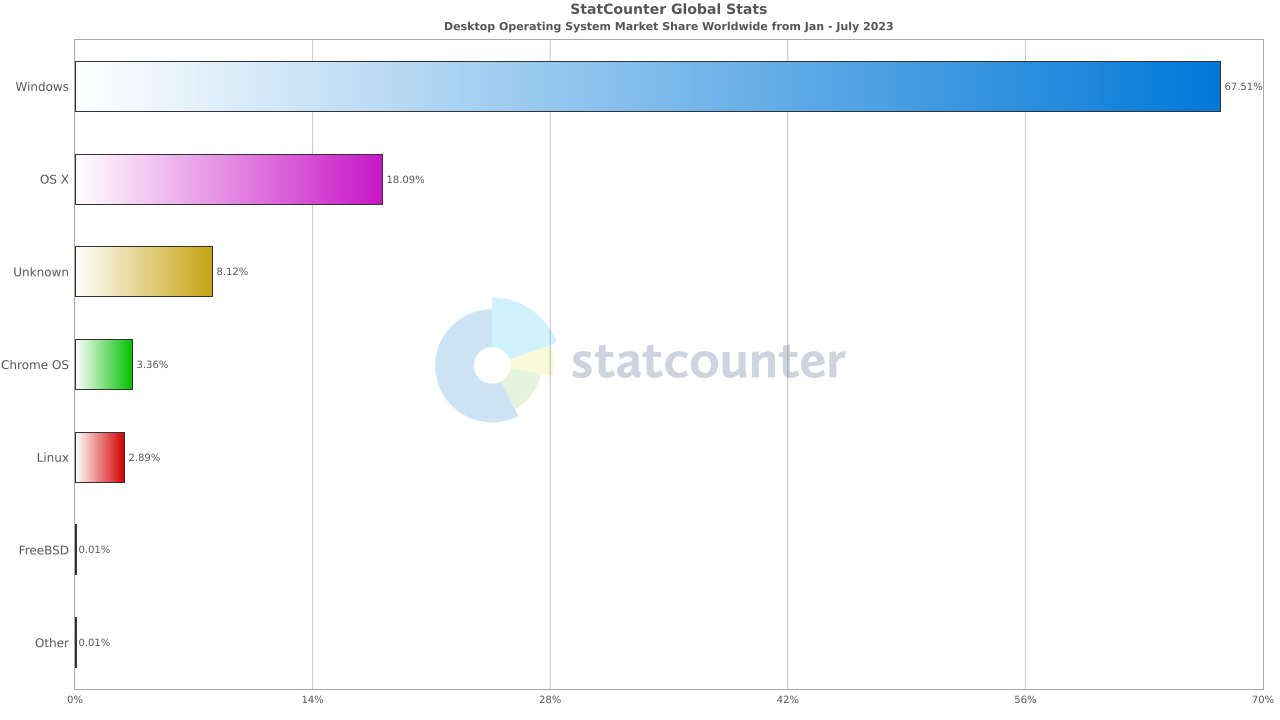
But wait, there's Moore
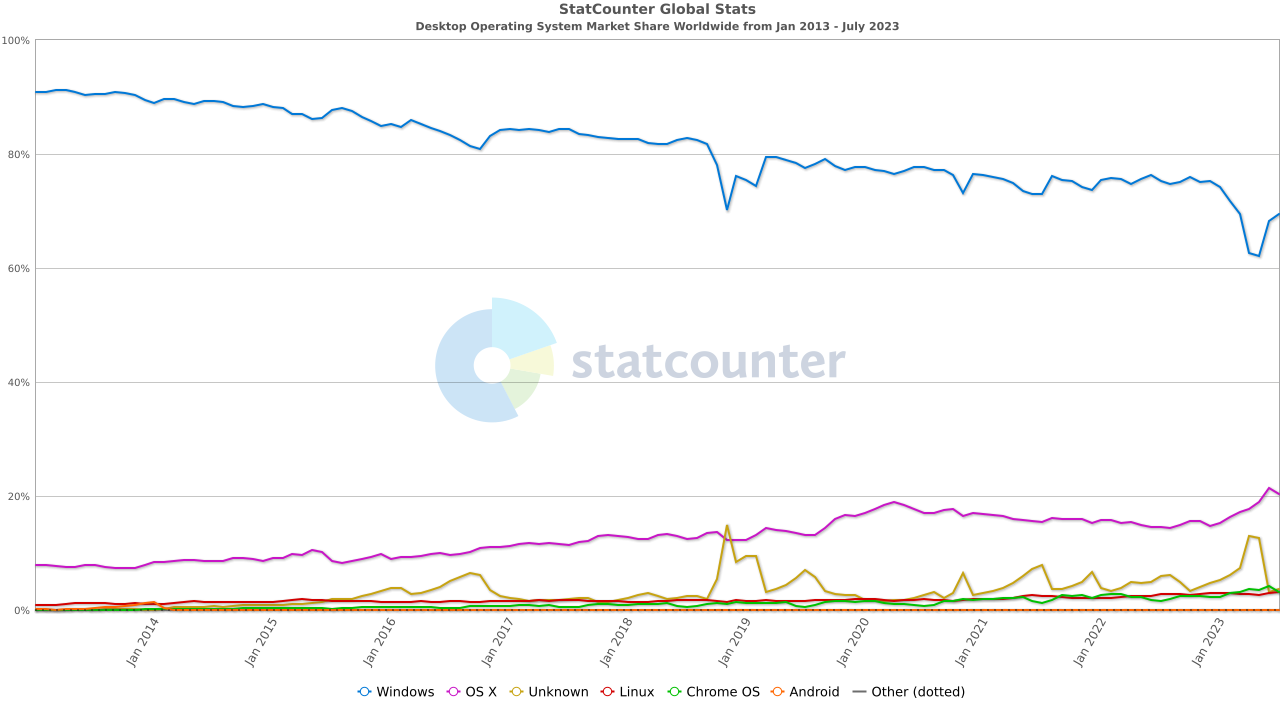
If we look at just desktop machines, Windows has a clear lead here. But many of you are using Linux (or a close cousin) without realizing it. Virtually all mobile devices run Linux (Android) or a close cousin (BSD) in the case of iOS. If you take that into consideration, Linux has a clear lead, but again, most people don't even know they are using it.

The decline of Windows?
Windows usage has gone done, slowly, but there is a decrease. There are several reasons for this. The biggest is that people are changing how they use computers. Mobile computing have been changing people's perspective on what a computer is. More and more people now use mobile devices for a lot of their day-to-day activities.
Where Linux is King
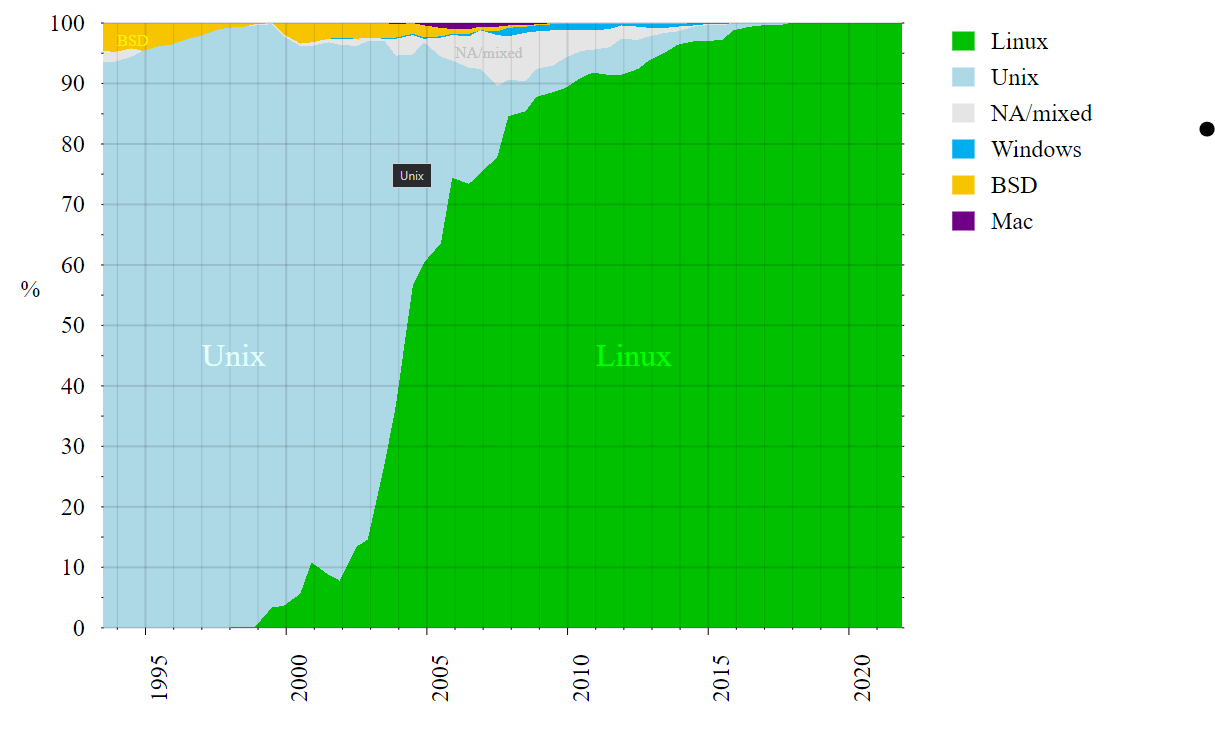
As we have discussed before, Linux is king when it comes to HPCs and super computers. The graph below pretty much explains itself.
The Linux Family Tree
Linux is a derivitive on Unix and as such owes much of how it operates to the *nix family of operating systems. Unix itself has an interesting history as well.
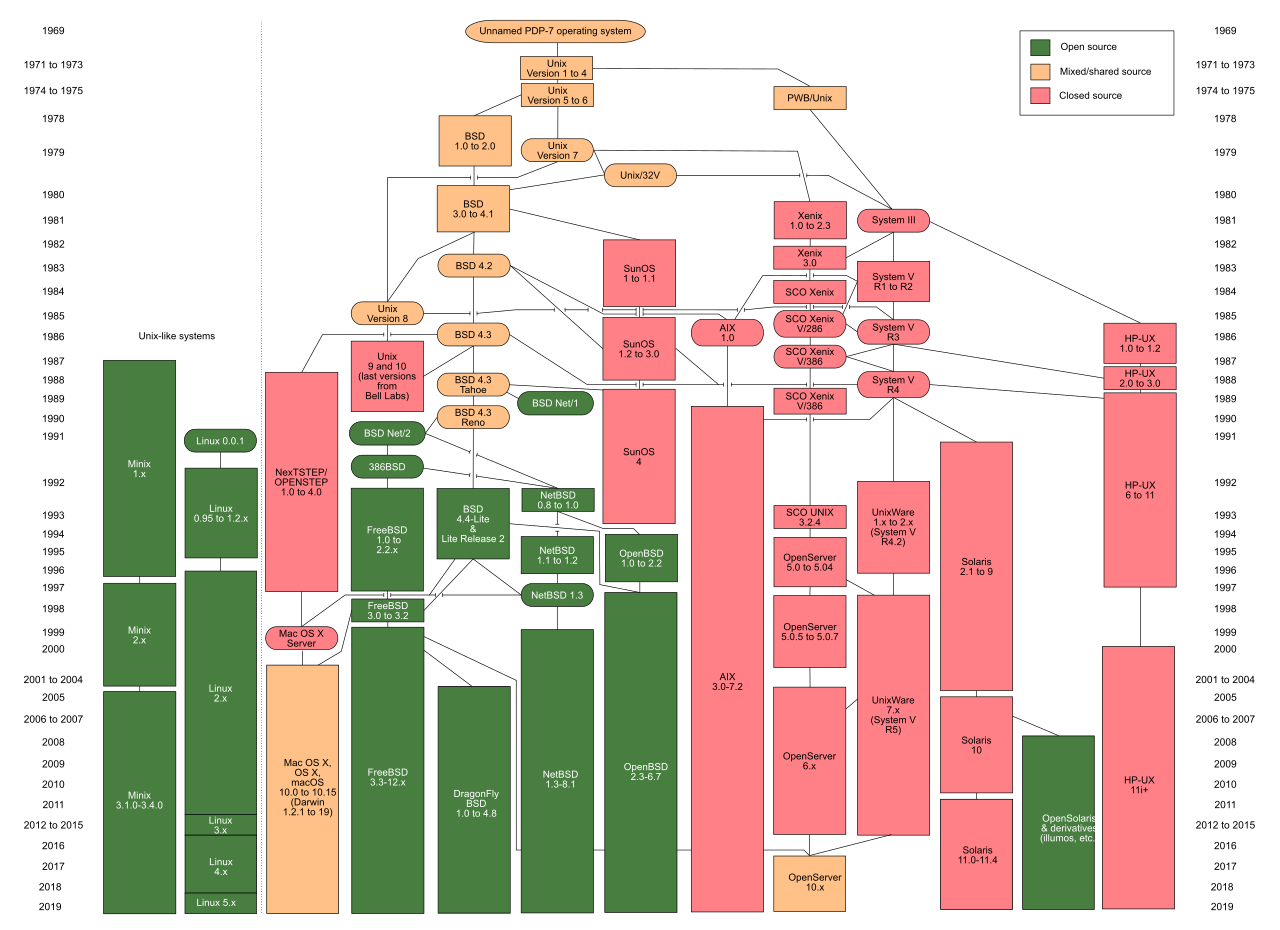
Unix History
- Developed in Bell Labs in the 1970s Over its development it had to adapt to multiple platforms
- Originally it was written in Assembly but then moved to C to aid in the development
- POSIX was created to standardize the OS
- Many derivatives were developed from Unix
Linux Kernel
- The kernel sits at the core of all Unix-like operating systems
- It is the first program loaded into memory after booting and oversees all low-level communications
- It also handles memory management, process management, scheduling, file management, input/output and network management

Handling a program
Each program may have one or more processes that will run. Linux is well suited for handling this and uses a PID (Process ID number) to track each one. Init is the very first process that starts up and so it always has a PID of 1.

Linux Shells
A GUI is certainly possible on Linux and many Linux distros designed for desktop use do use one. But, for much of the HPC and supercomputer usage, a Shell or Command Line Interface (CLI) is more often used. Most of them use Bash (Bourne-again shell) and that is what you will use in this class
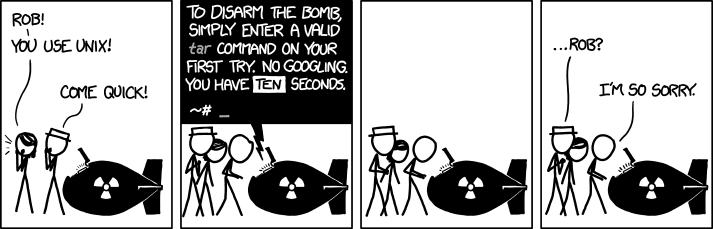
Danger zone
Like anything, be careful! Unix commands often do not have very many checks or “are you sure” prompts. With Codespace, worse you will do is delete your own work. Same goes for the HPC (you don't have access to do any other damage). But on your own machine, or if you do happen to have root on a machine...
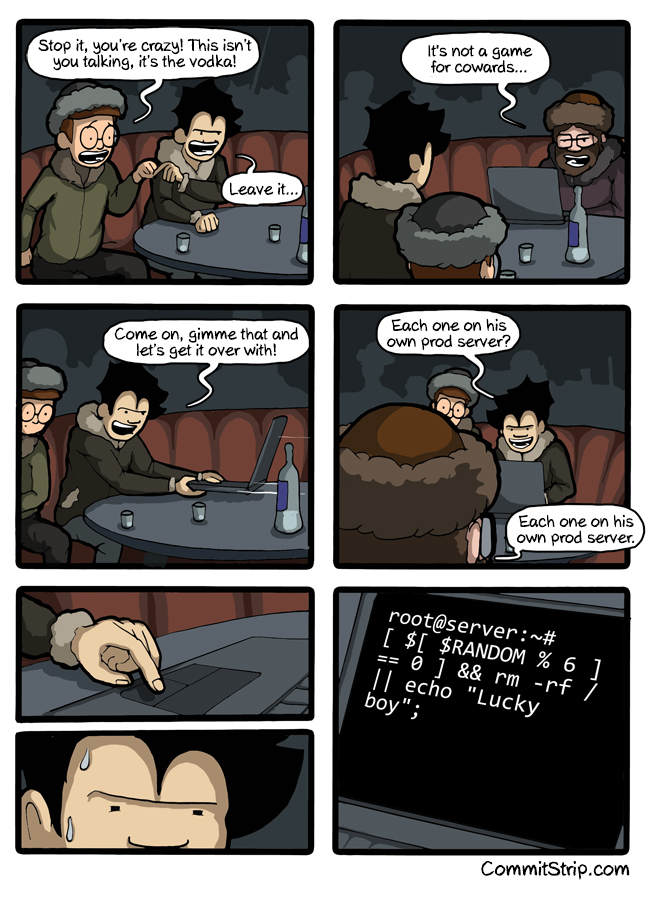
A few notes on the HPC
As I mentioned, we are going to switch over to using the HPC for our homework. We have a few things that we need to do to set this up though. Let's walk through starting a job on the HPC and clone our ICA to that.
Setting up our Python environment
Before you start anything we need to set up a virtual environment for Python. A virtual environment allows us to isolate what we run and configure it as we want it. We have done this already for you, but we do need to activiate this.
Let's begin with setting up the environment and then activating it.
source work/classtmp/AerE3610/bin/activate
Now that we have our environment, we need to add items to it. Right now, Python does not have any modules, let's change that. Let's start with setting up our Jupyter Notebook.
python3 -m pip install ipykernel --no-cache-dir
Now, we need to set up a config file for our Jupyter Kernel
python3 -m ipykernel install --user --name "AerE3610"
Please note that we only need to do this once. Your environment and config are stored in your home directory on the HPC. Now let's continue with a few things we can do in this environment.
Our final step is that we will want to tell Visual Studio Code where this is, and follow along with that.
Operating system commands in Python
Just about any programming language can usually access various aspects of the operating system. In Python, we can easily interact with the operating system using the OS and platform modules. To start, let's import both OS and platform. Make sure you run the code below or the rest of the code will not work.
Let's start with something simple, have Python read back what operating system it is currently running on. Put the following code in the box below.
platform.uname()
platform.uname()
uname_result(system='Linux', node='nova22-21', release='5.14.0-427.28.1.el9_4.x86_64', version='#1 SMP PREEMPT_DYNAMIC Fri Jul 19 14:40:47 EDT 2024', machine='x86_64')
After you run the block above, you should see something that identifies your operating system, type of hardware and even the CPU type. Now, let's also see what version of Python you are running, put the following code in the block below.
platform.python_version()
As a note on this, you should probably be running a version of Python that is version 3.8 or higher. Most of you should be 3.9 or 3.10.
platform.python_version()
'3.10.10'
This is great, but it is often useful to work with the filesystem and this is most often what you want Python or any other programming language to work with. This can be to read and write files and even create files and folders. For now, let's find out what the file path we have. We can use the following to determine the current directory structure.
os.getcwd()
Note that this will look different from computer to computer. It will depend if you are running Windows or a NIX OS like MacOS or Linux. It will also change based on where you are running this notebook.
os.getcwd()
'/home/mnelson/aere361_lectures'
We can also list what files and folders we have in our current directory. Type in the following in the box below.
os.listdir()
os.listdir()
['.gitignore',
 'slides_template.tpl',
 'Lecture_3.slides.html',
 'custom.css',
 'Module 3',
 'Module 4',
 'data',
 'Lecture_1.slides.html',
 'images',
 'AerE 361 Lecture 5 Documentation.ipynb',
 'Lecture_1.ipynb',
 'Lecture_2.ipynb',
 'Lecture_3.ipynb',
 'AerE 361 Lecture 6 - LaTeX and technical writing-student.ipynb',
 'Lecture_4.ipynb',
 'Lecture_4.slides.html',
 'Module 2',
 '.git',
 'README.md',
 'Lecture_2.slides.html']
Ok, let's combine some stuff we can use the following command to make a directory.
os.mkdir(path = "path location")
We want to make a new directory in the current directory we are in. We need to pass the full path of where we are currently. We could type this in manually, but then that wouldn't work in other setups where the location might change. Instead, we can get our current directory using the command we just used above. Now, we need to add the name of the directory we just called from the listdir command. That can easily be done by using the "+" to concatenate the strings. Use os.mkdir to make a new folder in this current folder called "AerE3610".
Hint: You will need an additional "/" before the name of the folder name you are trying to create.
os.mkdir(path = os.getcwd() + "/AerE3610")
Let's make sure this works. Run the code block below after running the one above. You should see your folder now listed.
os.listdir()
['.gitignore',
 'slides_template.tpl',
 'Lecture_3.slides.html',
 'custom.css',
 'Module 3',
 'Module 4',
 'data',
 'Lecture_1.slides.html',
 'images',
 'AerE 361 Lecture 5 Documentation.ipynb',
 'Lecture_1.ipynb',
 'Lecture_2.ipynb',
 'AerE3610',
 'Lecture_3.ipynb',
 'AerE 361 Lecture 6 - LaTeX and technical writing-student.ipynb',
 'Lecture_4.ipynb',
 'Lecture_4.slides.html',
 'Module 2',
 '.git',
 'README.md',
 'Lecture_2.slides.html']
Bash commands
In our Jupyter Notebooks, we can also directly run Bash commands. This is done with using an "!" before the command we want to run. Let's run the following command:
!pwd
This should return what directory you are in now.
!pwd
/home/mnelson/aere361_lectures
Let's create a file in that folder we just created. In Linux, it is easy to create a file using touch. Another useful tool we can use the man command. This is short for manual and it let's us pull up information on most of the Linux commands we can use.
Use man, you can do this either in this notebook, or open up a terminal. Then, using touch, create a file in the AerE3610 we just created. Let's call it "3610.txt"
!man touch
TOUCH(1)                         User Commands                        TOUCH(1)

NAME
       touch - change file timestamps

SYNOPSIS
       touch [OPTION]... FILE...

DESCRIPTION
       Update  the  access  and modification times of each FILE to the current
       time.

       A FILE argument that does not exist is created empty, unless -c  or  -h
       is supplied.

       A  FILE  argument  string of - is handled specially and causes touch to
       change the times of the file associated with standard output.

       Mandatory arguments to long options are  mandatory  for  short  options
       too.

       -a     change only the access time

       -c, --no-create
              do not create any files

       -d, --date=STRING
              parse STRING and use it instead of current time

       -f     (ignored)

       -h, --no-dereference
              affect each symbolic link instead of any referenced file (useful
              only on systems that can change the timestamps of a symlink)

       -m     change only the modification time

       -r, --reference=FILE
              use this file's times instead of current time

       -t STAMP
              use [[CC]YY]MMDDhhmm[.ss] instead of current time

       --time=WORD
              change the specified time: WORD is access, atime, or use: equiv‐
              alent to -a WORD is modify or mtime: equivalent to -m

       --help display this help and exit

       --version
              output version information and exit

       Note that the -d and -t options accept different time-date formats.

DATE STRING
       The  --date=STRING  is  a mostly free format human readable date string
       such as "Sun, 29 Feb 2004 16:21:42 -0800" or "2004-02-29  16:21:42"  or
       even  "next Thursday".  A date string may contain items indicating cal‐
       endar date, time of day, time zone, day of week, relative  time,  rela‐
       tive date, and numbers.  An empty string indicates the beginning of the
       day.  The date string format is more complex than is easily  documented
       here but is fully described in the info documentation.

AUTHOR
       Written  by  Paul  Rubin, Arnold Robbins, Jim Kingdon, David MacKenzie,
       and Randy Smith.

REPORTING BUGS
       GNU coreutils online help: <https://www.gnu.org/software/coreutils/>
       Report any translation bugs to <https://translationproject.org/team/>

COPYRIGHT
       Copyright © 2020 Free Software Foundation, Inc.   License  GPLv3+:  GNU
       GPL version 3 or later <https://gnu.org/licenses/gpl.html>.
       This  is  free  software:  you  are free to change and redistribute it.
       There is NO WARRANTY, to the extent permitted by law.

SEE ALSO
       Full documentation <https://www.gnu.org/software/coreutils/touch>
       or available locally via: info '(coreutils) touch invocation'

GNU coreutils 8.32               January 2024                         TOUCH(1)
!touch ./AerE3610/3610.txt
HPC Testing
Since we are on the HPC, let's test a few things.
import multiprocessing as mp
print(f"Number of cpu: {mp.cpu_count()}")
Number of cpu: 64
import numpy as np
import time

def random_square(seed):
    np.random.seed(seed)
    random_num = np.random.randint(0, 10)
    return random_num**2
t0 = time.time()
results = []
for i in range(1000000):
    results.append(random_square(i))
t1 = time.time()
print(f'Execution time {t1 - t0} s')
Execution time 5.402559280395508 s
t0 = time.time()
n_cpu = mp.cpu_count()

pool = mp.Pool(processes=n_cpu)
results = [pool.map(random_square, range(1000000))]
t1 = time.time()
print(f'Execution time {t1 - t0} s')
Execution time 2.939646005630493 s
import matplotlib.pyplot as plt
%matplotlib inline

def serial(n):
    t0 = time.time()
    results = []
    for i in range(n):
        results.append(random_square(i))
    t1 = time.time()
    exec_time = t1 - t0
    return exec_time

def parallel(n):
    t0 = time.time()
    n_cpu = mp.cpu_count()

    pool = mp.Pool(processes=n_cpu)
    results = [pool.map(random_square, range(n))]
    t1 = time.time()
    exec_time = t1 - t0
    return exec_time
n_run = np.logspace(1, 7, num = 7)

t_serial = [serial(int(n)) for n in n_run]
t_parallel = [parallel(int(n)) for n in n_run]
plt.figure(figsize = (10, 6))
plt.plot(n_run, t_serial, '-o', label = 'serial')
plt.plot(n_run, t_parallel, '-o', label = 'parallel')
plt.loglog()
plt.legend()
plt.ylabel('Execution time (s)')
plt.xlabel('Number of random points')
plt.show()

from traitlets.config.manager import BaseJSONConfigManager
from pathlib import Path
path = Path.home() / ".jupyter" / "nbconfig"
cm = BaseJSONConfigManager(config_dir=str(path))
tmp = cm.update(
        "rise",
        {
            "theme": "moon",
            "transition": "fade",
            "start_slideshow_at": "selected",
            "autolaunch": True,
            "width": "100%",
            "height": "100%",
            "header": "",
            "footer":"",
            "scroll": True,
            "enable_chalkboard": True,
            "slideNumber": True,
            "center": False,
            "controlsLayout": "edges",
            "slideNumber": True,
            "hash": True,
            "custom_css": "custom.css"
        }
    )